Mini Race Controls & HUD Guide
Find codes, crates, lineup send, and circuit tools faster on PC and mobile after the September UI pass.
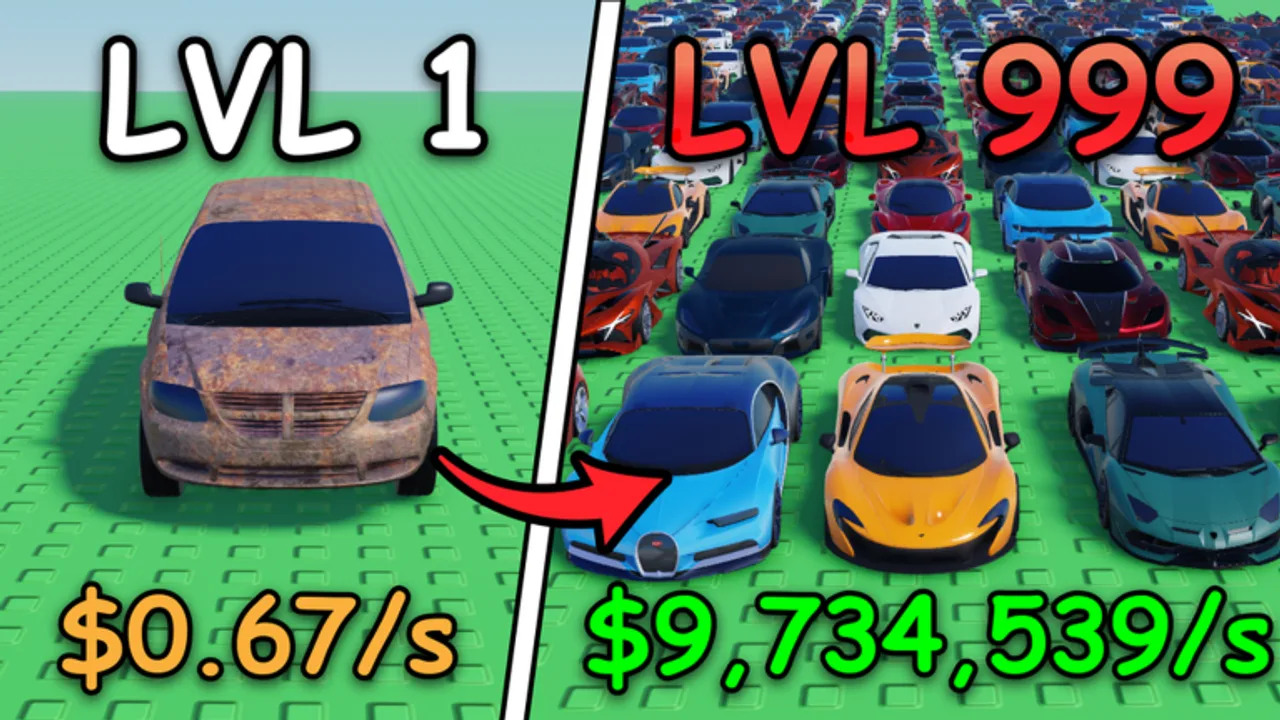
Mini Race [AUCTIONS] rewards players who know where every menu lives before cash starts burning. LoganTaylor Studios packs crates, garages, race lineups, circuit capture, auctions, and codes into a compact Roblox HUD. This guide maps the common PC and mobile layouts, shows how to build a habit for the codes button, explains race send-lineup UX, and covers the mobile UI improvements that shipped with the September 17, 2026 Auction Garages update.
If you have not finished the economy loop yet, skim Getting Started first, then return here whenever you lose a button after a patch.
Why HUD literacy matters
Every wasted minute hunting for Codes, Shop, or Race Send is a minute you are not selling duplicates, defending circuits, or testing a lineup. Servers cap at six players, so contested moments move quickly. Knowing the HUD is not optional polish — it is how you keep pace with rivals who already memorized the layout.
Treat the first session of any major update as a UI tour. After Auction Garages and the mobile polish pass, assume a few icons moved or resized. Confirm Codes, inventory, buildings, race challenge, and circuit map before you spend the RELEASE payout or open a premium crate.
PC HUD habits
On desktop, most Mini Race actions sit on the left or right edge of the screen with larger panels opening in the center. Build a fixed scan order so you never skip free currency:
- Codes / gift entry — usually a side-button style control. Open it before crates or shop. Full redeem steps live on How to Redeem and the Codes Hub.
- Currency readout — cash and gems. Mentally note balances after every redeem and race payout.
- Crates / collection — where pulls land and where duplicates become sell candidates. Pair with Crate Strategy and Sell Duplicates.
- Garage / buildings shop — capacity and the 60+ building catalog after September. See Buildings and Auction Garages.
- Race / lineup send — assemble starter, mid, and anchor, then challenge. Use How to Win Races and the Lineup Planner.
- Circuits / map — capture and defense for offline cash. Deep dive on Circuit Cash and Circuits.
Keep the camera free enough to see side buttons. Fullscreen overlays from other Roblox experiences can hide edge icons — if something vanishes, rejoin once before assuming a feature was removed.
Mobile HUD after the September update
The September 17, 2026 patch called out improved mobile UI. In practice that means clearer tap targets, less cluttered stacking of side buttons, and easier access to the same economy loop on phones and tablets. Mobile players should still expect smaller text and occasional thumb reach issues, so pin a personal rule: redeem codes in portrait or landscape — whichever keeps the Codes button fully tappable — before rotating into race view.
Mobile-specific tips:
- Tap Codes early while the HUD is calm; race results overlays can bury side buttons for a few seconds.
- Zoom or recentre if a shop panel clips the confirm button after Auction Garages panels grew denser.
- Prefer short sessions with a written goal from the Session Checklist so you are not hunting menus mid-tilt.
- If a button refuses input, close the topmost panel, wait for the toast to clear, then retry — do not mash five systems at once.
Codes button location habits
Promo codes are easy to miss because they are not part of the race fantasy. Build a ritual:
- On join: Codes first, always. RELEASE still grants cash and gems when listed as active.
- After patches: Codes second only to reading what moved on Updates.
- After long offline stretches: Codes before circuit defense, because free currency may change what you can afford to reclaim.
Never trust chat links that claim a codes menu outside the live client. Generators and executor popups are scams — see safety notes on the Scripts Hub and stick to in-game redeem only.
Racing send-lineup UX
Sending a lineup is the competitive heart of Mini Race. The UX usually asks you to pick cars for active slots, confirm the sheet, then choose a rival or race context. Treat that flow like a preflight checklist:
- Open collection and confirm the three roles you planned — starter, mid, anchor.
- Remove trophy-only cars that look rare but lose fair matchups.
- Send the lineup only when the confirm panel shows the cars you intended.
- After the result, note which slot failed before you open crates in frustration.
If the send panel still shows yesterday’s sheet, cancel and reselect. Accidental races with a practice bench waste cash and can drop circuit pressure at the wrong time. For deeper role theory, stay with How to Win Races; for a printable order of operations, use the Lineup Planner.
When you are climbing Grand Prix or speedway-style goals, the same send UX applies — only the stakes and recommended strength change. Do not invent a second control scheme; invent a stricter readiness gate.
Garages, auctions, and dense shop panels
Auction Garages and the expanded building catalog make shop UI busier. On both PC and mobile:
- Filter mentally into need-now versus ignore-for-now before scrolling the full 60+ list.
- Confirm purchase dialogs slowly; mis-taps on mobile buy vanity when you meant capacity.
- Leave auctions for surplus sessions after reading Auction Garages.
Circuit map controls
Circuit capture screens reward calm clicking. Select a target you can defend, confirm ownership, then leave. Panic-capturing every lit node without checking defense tools is a classic early mistake covered in Common Mistakes. Map thinking lives on Circuits.
Quick HUD recovery after you feel lost
- Rejoin once to reset stuck overlays.
- Scan edges for Codes, Shop, Race, Circuits in that order.
- Redeem anything active on Codes.
- Open Getting Started if the economy loop itself is unclear.
- Run a ten-minute pass with the Session Checklist.
Linking controls practice to progression
HUD mastery is not a separate mini-game. It exists so Crate Strategy, circuit defense, and race sends happen on time. Players who join the LoganTaylor Studios group for rewards still need the same button literacy to claim in-game gifts when they appear.
Master the scan order, respect mobile tap targets after the September polish, and treat lineup send as a deliberate confirm — not a panic button. The garage business moves at the speed of your HUD fluency.
Frequently Asked Questions
Quick answers to the most common questions.
Where is the Mini Race codes button?
Look for a Codes, Gift, or social-style control on the left or right HUD edge after the server loads. Redeem before crates or shop spends. Full steps are on How to Redeem.
What changed for mobile controls in September 2026?
The Auction Garages update included improved mobile UI: clearer tap targets and cleaner access to the same codes, shop, race, and circuit flows on phones and tablets.
How do I send a race lineup?
Open the race or lineup panel, assign starter, mid, and anchor cars on purpose, confirm the sheet matches your plan, then challenge. Cancel if yesterday's bench is still selected.
What should I do if a HUD button will not tap?
Close overlapping panels, wait for result toasts to clear, rejoin once if needed, then retry Codes → Shop → Race → Circuits in order.
Do PC and mobile use different Mini Race systems?
No. Both platforms run the same crate, garage, race, and circuit loop. Mobile mainly differs in tap precision and panel density after the September UI improvements.